The App Folder That Becomes a Junk Drawer
An iPhone app folder works best when its name matches how you retrieve apps. Use a short sorting routine to make cluttered folders easier to search.
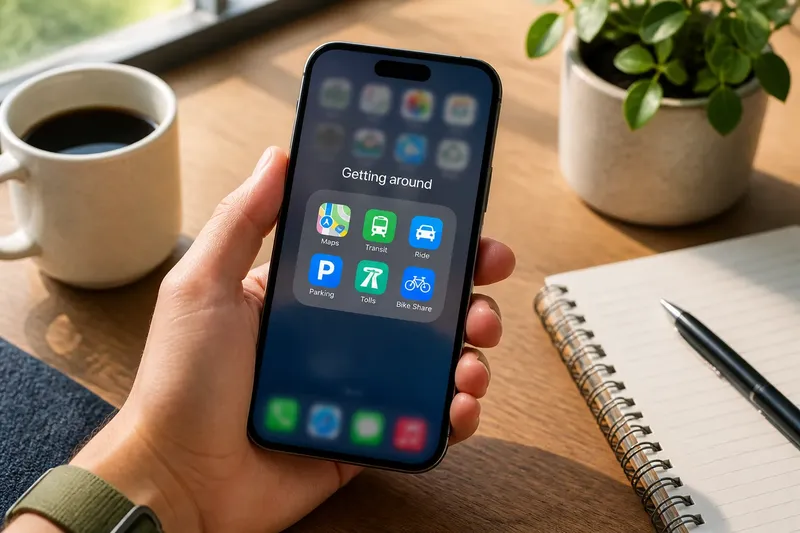
An iPhone app folder becomes a junk drawer when its contents are grouped by vague labels rather than by the way you look for them. A folder called “Useful” may gather apps you rarely open, while “Travel” might mix boarding passes, maps and foreign-language tools that you need at different moments. A small, repeatable sorting routine can give each folder a clear purpose without turning your Home Screen into a filing project.
The aim is not to produce a perfect catalogue. It is to make the next app easier to find. Treat each folder like a drawer with a label: if the label does not tell you what belongs inside, or if you cannot remember it when searching, the arrangement needs attention.
Notice the retrieval problem
Folders help when they shorten the path from a need to an app. They stop helping when you have to open several folders, scan a crowded grid and still wonder where you put something. That friction often comes from one of three problems: a label that is too broad, a folder that mixes unrelated tasks, or apps kept there simply because they were installed.
Start by noticing what actually happens. When you need an app, do you think “I need to scan this receipt” or “I need a utility”? The first thought describes a task; the second is a vague category. Good folder names tend to use the words you already associate with the job.
Do not sort by an abstract system just because it looks tidy. “Productivity” can mean mail, writing, timers, finance or project tracking. A folder named “Work” may still be useful if work is the word you naturally use and its apps support a coherent set of work tasks. The test is whether the label helps you retrieve, not whether it follows a universal taxonomy.
Choose a sorting rule
Before moving anything, choose one simple rule for the folders you are reviewing. A useful rule is to group apps by the moment or task that makes you reach for them: “Read”, “Capture”, “Money” or “Getting around”. Keep the terms short enough to scan beneath an icon, and specific enough to distinguish one folder from another.
There is no need to impose the same type of label on every folder. Some folders may describe a task, while another may name a place or context that genuinely shapes retrieval. The important point is consistency within a folder: apps belong together because you would look for them using the same cue.
Say you have an invented “Stuff” folder containing a library app, a parcel-tracking app, a voice recorder and a bus app. You notice that you search for the library app when you want something to read, and the bus app when you are heading out. Rename the folder “Reading” and move the library app there; move the bus app to a folder you would naturally search for while travelling, or keep it outside if it is a frequent tap. The expected observable result is that each app has a more predictable place, not that every icon has a folder.
Audit one folder
Work on one folder at a time. On an iPhone or iPad, touch and hold an app or an empty area of the Home Screen until the icons enter editing mode. You can then move apps between Home Screen pages or folders, and edit a folder’s name. The exact controls can vary by iOS version, so follow the on-screen prompts on your device.
Open the folder and look at each app in turn. Ask what you would be doing when you wanted it, and which word you would think of first. If an app has no clear link to the folder’s other contents, move it to a better-fitting folder, place it on a Home Screen page, or remove it from the Home Screen if you do not need a visible icon. Removing an icon from the Home Screen does not necessarily delete the app; choose the option carefully.
Then check whether the remaining group has one retrieval cue. If it does, give the folder that name. If it does not, split it only where the new groups would be meaningful and easy to remember. Avoid making a separate folder for every app: that recreates the search problem in a different form.
Decide what stays visible
A folder is not the only place for an app. Apps you use often may be quicker to reach directly from the Home Screen or Dock, while less frequent apps can sit in a folder or be found through Search or the App Library. Consider how you tend to open an app, rather than treating a folder as the required home for every installed app.
Keep a folder’s first visible icons in mind, too. The folder preview can help you recognise its contents, but it is not a substitute for a useful name. If the most recognisable app in a folder suggests the wrong purpose, the preview may make the folder harder to identify at a glance.
When deciding whether an app belongs in a folder, consider its role and your retrieval habit, not just its developer’s category. Two apps labelled as travel tools may serve very different moments; a map and a translation app might belong together if you seek both while abroad, but separately if one is part of your everyday commute. Your own cue is the sorting rule.
Keep the folders useful
After the first pass, use a light maintenance habit. When you install an app, place it where you would look for it, or leave it off the Home Screen if you do not need a visible shortcut. When you notice yourself hunting through a folder, treat that as a prompt to adjust its name or contents rather than adding another layer of folders.
A folder can also be temporary. If you have several apps for a short-lived project, a temporary label may help while the project is active. Once you no longer need that group, move the apps to their lasting homes or remove their visible shortcuts. This keeps a useful short-term arrangement from becoming permanent clutter.
Keep changes modest. A quick rename or moving one misplaced app can be enough; you do not need to revisit every page whenever you install something new. The best iPhone app folder is the one whose name comes to mind before you start searching.
Questions about folders?
How many apps should go in one folder?
There is no ideal number for every person. Keep enough apps together to make the folder useful, but split or rename it if scanning the contents becomes harder than remembering where each app belongs.
Should every app have a folder?
No. A frequently used app may be easier to reach on the Home Screen or in the Dock, and an occasional app can be found with Search or in the App Library. Folders are optional shortcuts, not a filing requirement.
What should I name a folder?
Choose the short word or phrase you would naturally think of when looking for its apps, such as “Reading” or “Money”. If two folders seem to fit the same name, make each label more specific or rethink whether the groups belong together.
Will removing an app from a folder delete it?
Moving an app out of a folder does not delete the app. If you choose to remove an app from the Home Screen, read the options shown on your device, since removing an icon and deleting an app are different actions.
When a folder starts to feel like a junk drawer, give it one clear retrieval cue and sort only the apps that do not fit. That modest reset is usually easier to keep up than a full Home Screen overhaul, and it helps the name do its most useful job: telling you where to look.