Why an iPhone Widget Can Show Information Without Opening Its App
An iPhone widget gives you a quick view of selected app information, helping you decide what needs attention without opening the full app.
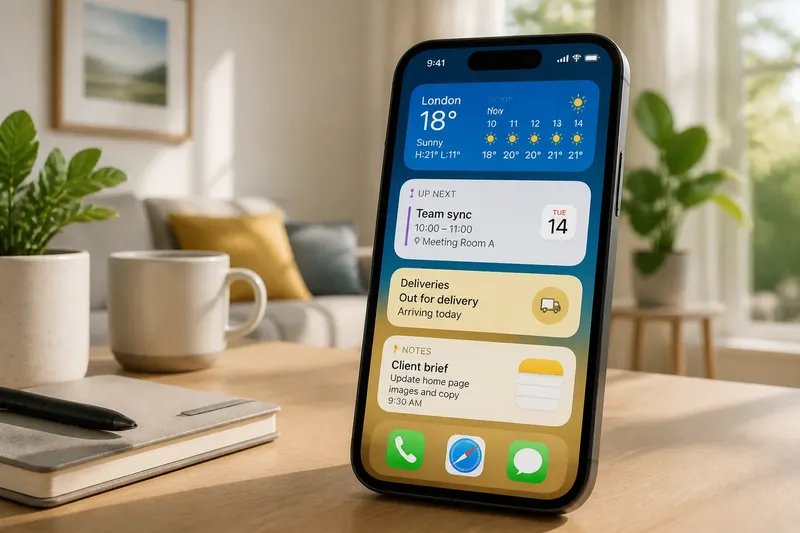
An iPhone widget can show a calendar event, a delivery update or a note without opening the app because it is designed as a small view of selected information. That view can answer a quick question, but it does not contain the full app’s tools, history or options. Choosing the right widget means deciding what you want to see at a glance and what still needs the app itself.
A view, not a smaller app
A widget is a compact display supplied by an app and placed on the Home Screen or, where supported, the Lock Screen. The app determines which information the widget can present and which sizes or layouts it offers. iOS provides the place for that view; it does not turn the widget into an independent copy of the app.
Think of a widget as a label on a storage box. The label tells you what is inside, but it does not give you access to every item or let you reorganise the box. A weather widget might show current conditions, for example, while the weather app contains additional locations, maps and settings.
This separation is deliberate. A full app can accommodate detailed controls and many screens. A widget has limited room, so it selects a small amount of information that is useful without that extra interaction. It is best understood as a window onto the app, not a shortcut that reproduces all its work.
Three ways to glance
Widgets generally serve one of three purposes. The best fit depends on the question you want your screen to answer.
- Current status: A battery, weather or activity widget can show a changing condition. Choose this when you want a quick reading and do not need to adjust settings from the widget.
- Next item: A calendar or transport widget can surface an upcoming event or journey detail. Choose this when one near-term item matters more than browsing the complete schedule or route.
- Selected content: A widget from a notes, photos or music app may display a chosen note, image or listening control. Choose this when you want a familiar item close at hand, while keeping editing and browsing in the app.
These are different uses, not simply different shapes. A large widget may show more items, but that does not make it a better replacement for opening the app. If your question is narrow, a small view can be clearer; if you need context, the app remains the more suitable place.
Why the view can differ
A widget has to make a selection. It may show the next calendar event rather than the entire day, or a single note rather than a searchable list. That selection reflects what the app’s developer has chosen to make available in the widget, along with the layout that fits its size.
Widgets can also present information in a way that suits a glance rather than a session. A calendar widget might emphasise an upcoming appointment; the calendar app can show surrounding events and let you change details. Opening the app is useful when the summary raises a question the widget cannot answer.
The display may not change at the exact moment the information changes. A widget’s purpose is quick access, not continuous interaction, and its contents can refresh at different times. If a detail appears stale, opening the app can provide a fuller current view; avoid relying on a widget as the sole source for time-critical information.
Choose a widget approach?
When is a widget better than opening the app?
Use a widget when you need a quick answer, such as what the next calendar event is or which song is playing. Open the app when you need to search, edit, compare or see surrounding details.
Does tapping a widget always open the same screen?
No. A tap may open the app, or it may take you to a related item or view, depending on the app and the part of the widget you touch. Check what happens in ordinary use before relying on a widget as a direct route to a particular task.
Why does my widget not show the information I expected?
The app may offer only certain widget layouts, or the current layout may show a different item than the one you have in mind. Look at the app’s available widget choices and, where offered, its widget settings; a larger size does not necessarily add the specific detail you want.
Should I use a Home Screen or Lock Screen widget?
A Home Screen widget suits information you want to see while moving between apps. A Lock Screen widget suits a compact glance before unlocking, if the app supports that placement and the information is appropriate to show there.
Place it with purpose
Say you want to know whether to leave soon for an appointment. You add a calendar widget that shows the next event to your Home Screen. At a glance, you can see the appointment; if you need its address or want to change the time, you open Calendar and continue there.
That is the useful boundary: let the widget surface the detail that prompts a decision, and let the app handle the decision’s more involved work. Before adding one, ask what single question it should answer. Then choose the app’s available layout that makes that answer easy to spot, and remove the widget if it merely repeats information you already see elsewhere.
For an iPhone widget, the best choice is not the one that displays the most. It is the one that makes a relevant detail visible without pretending the full app is unnecessary. Keep the glance simple, and open the app whenever the task needs more than a glance.