Reminders or Calendar: Which One Should Hold a Task?
Reminders or Calendar? Choose the right iPhone app by deciding whether a task needs a completion state, a time slot, or both in a clear workflow.
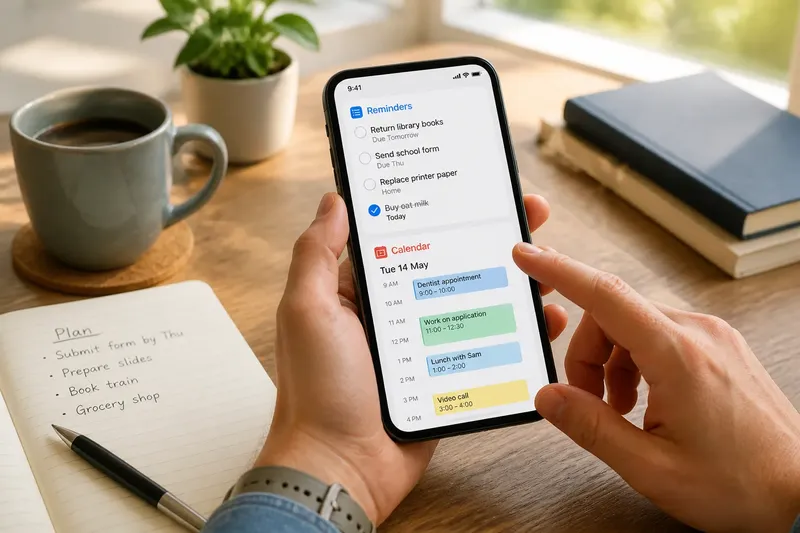
Reminders or Calendar is a choice about what you need to know when you look at an item: whether it is finished, or where it fits in time. A task such as “renew library books” usually needs a completion state; an appointment needs a place on the clock. Start with that distinction, and you can decide where an item belongs on your iPhone or iPad without forcing every obligation into one app.
1. Ask what changes
A reminder is built around a state that can change from unfinished to complete. You can add a title, a due date, a time, a location or other details, then mark the item done when you have acted. The central question is, “Have I done this?”
A calendar event is built around a time span or a point in time. It answers questions such as, “Where must I be?” and “What occupies this part of the day?” An event remains on the calendar after it has passed because it records a commitment, not merely an unchecked task.
That difference is like the difference between a shopping list and a table booking. The list loses an item when you have bought it; the booking still explains why you were unavailable at that time.
2. Put flexible work in Reminders
Use Reminders when you need to remember an action but have room to choose when to do it. “Send the school form” or “replace the printer paper” can be due on a particular day without claiming a fixed appointment slot. The item stays visible until you complete it or deliberately change its date.
Lists can separate contexts such as Home, Admin or Shopping, while tags can help group items across lists. A due date is useful when an action should be completed by a certain point; an alert adds a prompt when simply seeing the dated item may not be enough. These details support the completion state rather than turning the reminder into a meeting.
Say you need to return a borrowed book before a friend visits on Friday, but any evening beforehand will work. Add “Return the book” to Reminders and give it a suitable due date. You can complete it after the return; the observable result is that the item disappears from your unfinished list, while your calendar stays open for appointments.
3. Reserve Calendar for time
Use Calendar when the time itself matters to you or to someone else. A dentist appointment, a video call and a train departure all occupy a defined point or span. Their dates help you judge availability, avoid clashes and see how the day is arranged.
Calendar also makes sense for a task that genuinely needs a reserved work period. If you have agreed to draft a document during a particular afternoon, the block protects that time in a way an undated reminder cannot. Name the event so it describes the activity, and allow enough room around commitments if travel or preparation matters.
A calendar entry is not a reliable substitute for a completion list. If “prepare slides” appears as a block, you may still need to know whether the work was finished, especially if plans changed. Treat the event as the reservation and record the action in Reminders when completion needs to remain visible.
4. Use both for different jobs
Some responsibilities have both a deadline and a useful work session. Keep the action in Reminders if you need an unfinished-to-finished state, then add a Calendar block when you have chosen when to do it. The two entries should have related, recognisable wording so you can tell they concern the same work.
For instance, imagine you must submit a form by Thursday and have chosen Tuesday afternoon to complete it. “Submit the form” can sit in Reminders with its due date, while Calendar holds the Tuesday work block. If the block moves, change the calendar event; if the task is completed, mark the reminder done. This avoids treating a planned session as proof that the task is finished.
Use both only when each view answers a different question. Duplicating every reminder as a calendar event can make the day look crowded, while placing every appointment in a task list can hide its effect on availability.
5. Choose by the signal
Before adding an item, decide which signal would help you act. Choose Reminders if you need to see that something remains incomplete. Choose Calendar if you need to see that a stretch of time is occupied. Choose both when the task must be completed and you want to reserve a specific period for it.
- “Buy oat milk”: Reminders, because the task is complete once the item is bought and usually needs no appointment slot.
- “Call the clinic at the agreed time”: Calendar, because the time is part of the commitment. Add a reminder as well only if a separate completion prompt is useful.
- “Review the application before Friday”: Reminders, because the deadline matters but the work can happen at a flexible time.
- “Meet Sam for lunch”: Calendar, because both people are committing to a time.
- “Work on the application on Tuesday morning, submit by Friday”: both, because one entry reserves work time and the other tracks whether submission is still outstanding.
These are starting points, not rules about every person’s habits. If a reminder with a time helps you keep an appointment, that can be a sensible personal choice; the useful test is whether the app shows the information you need without creating confusing duplicate entries.
Questions about the choice?
Can a reminder have a date and time?
Yes. A reminder can carry a due date and, where useful, an alert time. That does not make it a calendar reservation: its main purpose is still to track an action until you complete it.
Should deadlines go in Calendar?
A deadline can live in Reminders when you need to track completion and can choose your work time. Put it in Calendar when the deadline itself must be visible as a time commitment or when a fixed session is part of the plan.
Can I put a task in both apps?
Yes, when the entries serve separate purposes: one tracks completion and the other reserves time. Keep their wording recognisable, and update each according to what changed rather than assuming one entry automatically settles the other.
What if I am unsure where an item belongs?
Ask whether you would still need to see the item after its time has passed. If the answer depends on whether you finished an action, use Reminders; if the essential fact is that you were occupied then, use Calendar.
Keep the distinction useful
Reminders or Calendar becomes easier to decide once you name the information you want each item to preserve. A completion state belongs naturally in Reminders; a commitment to time belongs naturally in Calendar. For mixed cases, keep both only when the separate views genuinely help.
When deciding, use the app’s current options and any relevant device settings as your guide, since features can vary by software version. Then choose the simplest entry that answers your question at a glance: “Is it done?” or “When am I committed?”